Tampilkan postingan dengan label reset. Tampilkan semua postingan

Selasa, 10 Desember 2013

Total Reset or Hard Reset Nokia E72

This option restores the .ini files from the ROM.
Does not erase data (photos, videos, documents) nor applications from
a third party. Key Code *#7780# (click this combination of keys on the
keyboard in the mobile)
2.- Total Reset or Hard Reset

This option restores the original operating system from the ROM.
Formats the C: partition and deletes all data including the memory
card. Key Code *#7370# (click this combination of keys on the keyboard
in the mobile)
Important: To proceed to reset, the battery must be full and the
mobile device connected to the charger. If during the course of reset,
the mobile stop receiving  electricity it can ruin the internal flash
memory of the mobile device and stop function. 

Product Specifications
Dimensions

* Size: 114 x 58.3 x 10.1 mm
* Weight (with battery): 128 g
* Volume: 65 cc
Display and user interface

* Screen size: 2.36
* Resolution: 320 x 240 pixels (QVGA)
* Up to 16.7 million colours
Colours

o Amethyst
o Zodium black
o Metal grey
o Topaz brown
Hardware

* Nokia Battery BP-4L 1500 mAh Li-Ion standard battery
* Talk time (maximum):
o GSM 12 h 30 min
o WCDMA 5 h 54 min
o VoIP 13 h 42 min
* Standby time (maximum):
o GSM 492 h
o WCDMA 576 h
o WLAN 110 h
* Video playback time (maximum): 13 h 6 min
* Video recording time (maximum): 6 h 24 min
* Video call time (maximum): 4 h
* Music playback time (maximum): 37.5 h
* 4 GB MicroSD memory card (with hot swap), support for up to 16 GB
* One-touch use as USB mass memory storage
* 250 MB free user disk space
Operating frequency

* E72-1 Quad-band EGSM 850/900/1800/1900, WCDMA 900/2100 HSDPA
* E72-2 Quad-band EGSM 850/900/1800/1900, WCDMA 850/1900 HSDPA
* E72-3 Quad-band EGSM 850/900/1800/1900, WCDMA 850/2100 HSDPA
* Offline mode
Data network

* GPRS class A, multislot class 32, maximum speed 107/64.2 kbps (DL/UL)
* EGSM class A, multislot class 32, maximum speed 128/384 kbps (DL/UL)
* WCDMA 850/1900/2100, WCDMA 900/1900/2100
* HSDPA maximum speed: 10.2 Mbps
* HSUPA maximum speed: 2 Mbps
* WLAN 802.11b, 802.11g
o WLAN Security: WPA2-Enterprise, WPA2-Personal, WPA-Enterprise, WPA-Personal
o WLAN Quality of Service: WMM, U-APSD
o WLAN wizard
* TCP/IP support
* Capability to serve as data modem
* Support for MS Outlook synchronisation of contacts, calendar and notes
* Bluetooth version 2.0 with Enhanced Data Rate
* Micro-USB connector which supports charging. High-Speed USB 2.0
* 3.5 mm Nokia audio connector
Software platform & user interface

* S60 3rd Edition Feature Pack 2 (S60 3.2.3)
* Symbian OS version 9.3
* Active standby
* Voice commands
* FOTA (Firmware update Over The Air)
GPS and navigation

* Integrated GPS, A-GPS receivers
* Compass
* Nokia Maps 3.0
Camera

* 5 megapixel camera (2592 x 1944 pixels) with autofocus and flash
* Image formats: JPEG, Exif
* CMOS sensor
* 5 x digital zoom
* One-touch autofocus key
* Focal length: 4.7 mm
* Focus range: 10 cm to infinity
* LED flash
 

Senin, 09 Desember 2013

SonyEricsson ST18i Hard Reset Pattern lock Problem

pattern lock, google account lock how to reset

1.switch on mobile "mobile show google lock"

2.then go to emergency call press this code *#*#7378423#*#*
after pressing key display show four option
*service info
*service setting
*service texts
*customization setting

3.choose "customization setting"

4.then press "reset customization" phone will reboot & reset

Basic Reset or Soft Reset Nokia E55

1.- Basic Reset or Soft Reset

This option restores the .ini files from the ROM.
Does not erase data (photos, videos, documents) or applications from
a third party. Key Code *# 7780 # (click this combination of keys on the
keyboard in the mobile)
2.- Total Reset or Hard Reset

This option restores the original operating system from the ROM.
Formats the C: partition and deletes all data including the memory
card. Key Code *#7370# (click this combination of keys on the keyboard
in the mobile)
Important: To proceed to reset, the battery must be full and the
mobile device connected to the charger. If during the course of reset,
the mobile stop receiving electricity it can ruin the internal flash
memory of the mobile device and stop function.

Nokia e55 specifications

Developer Platform S60 3rd Edition, Feature Pack 2
Operating System Symbian OS v9.3
Screen Resolution 240 x 320
Screen Color Depth 24 bit
Screen Size 2.4
Display Technology LCD transflective
Device Size 116.5 x 49 x 9.9 mm
Volume 54 cc
Weight 98 g
Keypad Compact QWERTY Keyboard
Other Keys 3 Labeled Soft Keys 5-way Scrolling Camera Key Volume Keys
Frequency Bands GSM 1800 GSM 1900 GSM 850 GSM 900 WCDMA Band I (2100) WCDMA Band VIII (900)
Data Bearers EGPRS GPRS HSDPA HSUPA WCDMA WLAN IEEE 802.11 b/g
Regional Availability Asia-Pacific, Europe, INDIA, Middle East
CPU Count Single CPU
CPU Type ARM 11
CPU Clock Rate 600 MHz
UAProfile Link Profile 1 Profile 2
Example User Agent header Mozilla/5.0 (SymbianOS/9.3; Series60/3.2 NokiaE55-1/021.013; Profile/MIDP-2.1 Configuration/CLDC-1.1 ) AppleWebKit/525 (KHTML, like Gecko) Version/3.0 BrowserNG/7.1.13841
Consumer Link Device Home Page
Developer Page Link Developer Home Page
Remote Device Access Service Link to the Service
Extra Features Accelerometer Sensor Ambient Light Sensor Compass Compass (Magnetometer Sensor) Files on OVI FOTA Firmware over the Air FOTI Firmware over the Internet Nokia Maps 3.0 Ovi Store PictBridge Software Updates Themes VoIP
GPS Features A-GPS
Java Technology JSR 139 Connected, Limited Device Configuration (CLDC) 1.1 JSR 118 MIDP 2.1 JSR 248 Mobile Service Architecture Subset for CLDC JSR 75 FileConnection and PIM API JSR 82 Java™ APIs for Bluetooth 1.1 JSR 172 J2ME™ Web Services Specification (RPC package) JSR 172 J2ME™ Web Services Specification (XML Parser package) JSR 177 Security and Trust Services API for J2ME™ (SATSA-CRYPTO package) JSR 177 Security and Trust Services API for J2ME™ (SATSA-PKI package) JSR 179 Location API for J2ME™ 1.0 JSR 180 SIP API for J2ME™ JSR 184 Mobile 3D Graphics API for J2ME™ 1.1 JSR 205 Wireless Messaging API 2.0 JSR 226 Scalable 2D Vector Graphics API for J2ME™ 1.1 JSR 234 Advanced Multimedia Supplements 1.0 (audio3d) JSR 234 Advanced Multimedia Supplements 1.0 (music) IAP Info API eSWT UI API 1.0.3 Nokia UI API 1.1 JSR 135 Mobile Media API 1.2
Java API Access Permissions Java API Access Permissions
Other APIs Open C APIs
Product ID 0x20014DCF
Sensor API Channels Accelerometer Double Tap Accelerometer XYZ Magnetic North Magnetometer XYZ Orientation Rotation
Certificates Symbian A, Symbian B, Symbian C, Symbian D, UTI Root
Browser Details HTML over TCP/IP OSS Browser WAP 2.0 XHTML over TCP/IP
Flash Technology Flash Lite 3.0
Flash Lite Features Flash Video
Web Runtime Web Runtime 1.1
Multimedia Codecs in Detail Codec
Camera Resolution 2048 x 1536
CMOS Sensor 3.2 Megapixel
Camera Digital Zoom 4 x
Camera Image Formats JPEG
Camera Features Auto Exposure, Flash, Full Focus, Full Screen Viewfinder, Red-Eye Reduction, Self Timer, Sequence Mode, Still Image Editor
Video Recording Resolution 640 x 480
Video Recording Frame Rate 15 fps
Video Digital Zoom 4 x
Video Recording Formats H.263, MPEG-4
Video Features Video Call Video Editor Video Player Video Recorder Video Ringtones Video Sharing Video Streaming
Video Playback Formats 3GPP formats (H.263), Flash Video, H.264/AVC, MPEG-4, RealVideo 7,8,9/10, WMV
Graphic Formats BMP, EXIF, GIF87a, GIF89a, JPEG, JPEG 2000, MBM, PNG, TIFF, WBMP, WMF
Audio Features Audio Equalizer Audio Recording AAC Audio Streaming Internet Radio Loudness Music Player Stereo FM RDS Radio Stereo Widening
Audio Formats AAC, AAC+, AMR-NB, AMR-WB, eAAC+, M4A, MIDI Tones (poly 64), Mobile XMF, MP3, MP4, RealAudio 7, 8, 10, SP-MIDI, True tones, WAV, WMA
Secondary Camera Resolution 240 x 320
Secondary Camera Video Recording Resolution 144 x 176
Secondary Camera Video Recording Frame Rate 15 fps
Maximum User Storage 60 MB[1]
NAND Memory 256 MB
Memory Card type Micro SD
Memory Card Features Hot Swap
Maximum Memory Card Size 16 GB
Maximum Heap Size Unlimited
Maximum JAR Size Unlimited
Notes 1 Also 2GB microSD card included.
Local Connectivity Bluetooth 2.0 +EDR DLNA Certification Micro USB MTP (Multimedia Transfer Protocol) Nokia AV 3.5mm Nokia microUSB Cable CA-101 UPnP USB 2.0 High-Speed USB Mass Storage
Bluetooth Profiles A2DP, AVRCP, BIP, DUN, FTP, GAP, GOEP, HFP, HID, HSP, OPP, PBAP, SAP, SDP, SPP
WLAN support 802.11b/g Nokia VoIP 3.0 WEP WPA WPA2 (AES/TKIP)
Messaging IM, MMS+SMIL, SMS
Messaging Features OMA Instant Messaging and Presence Service v1.2.1 OMA Multimedia Messaging Service v1.2
Email Solutions Lotus Notes Traveller Mail for Exchange OMA E-mail Notification v1.0
Supported Email Protocols IMAP4, POP3, SMTP
Supported Document Formats Excel, PDF, Powerpoint, Word
Power Management USB Charging
Battery model BP-4L 3.7V 1500mAh
GSM Talk Time up to 8.0 hours
WCDMA Talk Time up to 6.0 hours
GSM Standby Time up to 23 days
WCDMA Standby Time up to 28 days
Music Playback Time up to 40.0 hours
OMA Device Management OMA Client Provisioning v1.1 OMA Device Management v1.1.2
Synchronization ActiveSync iSync OMA Data Synchronization v1.2 SyncML
Digital Rights Management OMA DRM Forward Lock OMA DRM v1.0 OMA DRM v2.0 Windows Media DRM 10
DRM Delivery Method HTTP Download MMS OMA Download v1.0
Web Services Liberty Alliance ID-WSF 1.1 OMA WS Network Identity 1.0 WS-I Basic Profile 1.0/1.1

Sabtu, 07 Desember 2013

Nokia X2 02 reset

How to hard reset Nokia X2-02 or soft reset Nokia X2-02

To hard reset your Nokia X2 you just have to press *#7370# and press Dial. The phone will request the security code that is by default 12345. Please be aware that you will loose all the data in your phone, so you should backup all relevant information.

If you want to soft reset your Nokia X2 you need to press *#7780# and then Dial. The security code is 12345. Once you complete this, your phone will come back to factory settings, but you will not loose personal data. Anyway it is recommended to make a backup before performing any of the mentioned procedures.

Rabu, 27 November 2013

Perform Hard Reset Samsung Galaxy Tab 2

Perform Hard Reset Samsung Galaxy Tab 2


Hard resetting your Samsung Galaxy Tab 2 is a lot like hard resetting the original Samsung Galaxy Tab, however if you want to reset the device using the operating system then the steps will be different.
This guide applies to both the 7 inch model (7.0 version) and the 10 inch model (10.1 version).
**Note** Make sure to backup any files on your device as well as your SD Card that you intend to keep. The hard reset will wipe all files off of the internal memory, as well as the decryption key on the SD Card which may make existing files unreadable.

Hard Reset Using the Operating System

If you still have access to the Operating System, I would try these steps first since they are a little bit easier than the hardware reset steps.
1. Navigate to Settings either from the Apps menu, or just by simply pressing on the time to bring up the notifications menu.
2. Scroll down to the Personal group and press on Back Up and Restore.
3. Press the Factory Data Reset option.
4. It will bring up a screen showing all of the accounts synced on the device, press theReset Device button at the bottom.
5. You’ll see the final verification screen, press the Delete All button.
6. The device will restart and boot into the recovery mode to finish the process. You’ll see the Android logo for a few moments, and it will restart again. When this is complete, you’ll be back to the Welcome screen to setup the device.

Hard Reset Using the Hardware Method

If you can’t get into the Operating System at all, then you can perform a hard reset using only the hardware.
1. With the device turned off, hold the Volume Up button and press the Power button.
2. Continue to hold the Volume Up button and you’ll see the recovery screen appear after you see the Samsung Logo.
3. Use volume up and down to navigate to Wipe Data / Factory Reset and press the Power button to confirm.
4. Use volume up and down to navigate to Yes and press the Power button to confirm.
5. Use volume up and down to navigate to Reboot System Now and press the Power button to confirm.
6. The device will restart and boot into the recovery mode to finish the process. You’ll see the Android logo for a few moments, and it will restart again. When this is complete, you’ll be back to the Welcome screen to setup the device.

Selasa, 26 November 2013

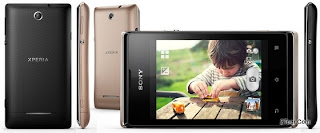
Sony Xperia E Dual C1605 C1604 Hard Reset

To perform Hard Reset on this Xperia E, you just need to make sure that all the data has already been backuped
image source

Reset Via Settings
  1. Select Apps from yourHome screen
  2. Tap Settings 
  3. Tap Backup & reset.
  4. Tap Factory data reset 
  5. Tap Reset phone.
  6. Tap Erase everything.
To avoid permanent damage to your device, do not restart your device while a reset procedure is underway.
Warning! All data will be erased from device memory, including system and application data, settings and downloaded applications. Back up your important data.  The device will restore to factory settings.
Performing Soft Reset
If your phone hangs or does not responding, try to Press and hold power key about 10 seconds.  It will rebooting automatically.  Or try to remove and re insert the battery and SIM Card.

Minggu, 24 November 2013

How to Hard Reset Samsung Galaxy Ace S5830

How to Hard Reset Samsung Galaxy Ace S5830


1. Press and hold the power and menu key for few second untill you enter the restore menu
2. After the menu show choose “wipe data/factory reset “

3a. Select yes and your phone will be restore to default
3b. After finish choose reboot now

4. It will restart. Don’t panic because it take few minute until complete.

5. Don’t panic just wait. If there is no response in 10 minute just release your battery and put it back again and repeat from first step.

Note;
-use menu key to select.
-use volume up down to choose the menu.
-make sure u have enough power in ur batttery.

Other Method
1. go to setting~>privacy~> factory data reset.

OR

2. dial *2767*3855#

all of this method will make the same effect to your phone: -”reset your phone to factory setting”

Rabu, 20 November 2013

Boost mobile motorola i1 hard reset


1. Power phone off

2. Press and hold the following buttons at the same time:
· Volume Up and Down, Green "send button" and Center "OK" button
3. Press "Red" Power on/End call button while still holding the other buttons
4. Release all buttons.
5. You will see Motorola emblem appear followed by an image of an arrow going from handset to the phone. This process may take a few minutes. Do not pull battery or power off handset.
  • Reset may take several minutes.
6. Handset will power cycle on its own. When coming back up, the Motorola emblem will reappear.
7. Let phone complete power up process.
8. Once complete, you will start back at the Setup Wizard to input all their previously used credentials. If your handset does not power back on with your carriers settings, you will need to do a Master Clear through the i1 settings menu at this point to bring back carrier features.
At the i1 homescreen, press Menu hard key, selectSettings.
Scroll down to SDcard & phone storage.
Select Master Clear & tap on Reset phone to initiate Master Clear.
Handset will power cycle on its own. When coming back up, the Motorola emblem will reappear.
Let phone complete power up process.
Once complete, you will start back at the Setup Wizardagain to input all their previously used credentials.
9. Complete set-up. Make sure you re-enter a working Gmail account so you can access security lock reset, Marketplace, and other vital features of the handset in the future with no issues.

Senin, 18 November 2013

Samsung 18150 Hard Reset Solved Too Many Pattern Attemps Problem Solution

Samsung 18150 Hard Reset Solved Too Many Pattern Attemps Problem Solution

Samsung Galaxy Wonder I8150 correct way for Hard Reset Problem: Too many pattern attempts.
undefined

PROCEDURES:

* PRESS AND HOLD "VOLUME UP" AND "HOME" BUTTONS AND PRESS POWER ON, WAIT UNTIL THE SCREEN DISPLAY LIKE THIS.

* Press "left soft" key to display "Android System Recovery Utilities"
undefined
* Select "wipe data/factory reset" by pressing "volume down" key
undefined
* Press "Home" button to select.
* Press "Volume Dow" key to select "Yes"
* Press "Home" button again and wait until finished


You are now completely reseted the phone back into his factory settings

Minggu, 10 November 2013

Perform Hard Reset Samsung Galaxy Tab 2


Hard resetting your Samsung Galaxy Tab 2 is a lot like hard resetting the original Samsung Galaxy Tab, however if you want to reset the device using the operating system then the steps will be different.
This guide applies to both the 7 inch model (7.0 version) and the 10 inch model (10.1 version).
**Note** Make sure to backup any files on your device as well as your SD Card that you intend to keep. The hard reset will wipe all files off of the internal memory, as well as the decryption key on the SD Card which may make existing files unreadable.

Hard Reset Using the Operating System

If you still have access to the Operating System, I would try these steps first since they are a little bit easier than the hardware reset steps.
1. Navigate to Settings either from the Apps menu, or just by simply pressing on the time to bring up the notifications menu.
2. Scroll down to the Personal group and press on Back Up and Restore.
3. Press the Factory Data Reset option.
4. It will bring up a screen showing all of the accounts synced on the device, press theReset Device button at the bottom.
5. You’ll see the final verification screen, press the Delete All button.
6. The device will restart and boot into the recovery mode to finish the process. You’ll see the Android logo for a few moments, and it will restart again. When this is complete, you’ll be back to the Welcome screen to setup the device.

Hard Reset Using the Hardware Method

If you can’t get into the Operating System at all, then you can perform a hard reset using only the hardware.
1. With the device turned off, hold the Volume Up button and press the Power button.
2. Continue to hold the Volume Up button and you’ll see the recovery screen appear after you see the Samsung Logo.
3. Use volume up and down to navigate to Wipe Data / Factory Reset and press the Power button to confirm.
4. Use volume up and down to navigate to Yes and press the Power button to confirm.
5. Use volume up and down to navigate to Reboot System Now and press the Power button to confirm.
6. The device will restart and boot into the recovery mode to finish the process. You’ll see the Android logo for a few moments, and it will restart again. When this is complete, you’ll be back to the Welcome screen to setup the device.

Minggu, 03 November 2013

Micromax A45 Hard Reset to Unlock User setting and DATA

> Press and hold Volume up + Volume Down + power on
> you will see 2 options (recovery mode / Factore mode) press volume up to select recovery mode
> select wipe data/ factory reset by volume down button then touch menu
> volume down to select yes--delete all user data then touch menu
> reboot system now

Minggu, 20 Oktober 2013

HTC Magic hard reset

HTC Magic hard reset

Resetting the HTC Magic
To reset the HTC Magic phone using phone buttons scroll down 
Resetting the phone deletes all data, including downloaded applications, and the phone back to its initial state, the state before you turned on the phone for the first time.
Important Make sure to back up important data you have on the phone before you perform a factory data reset.


To reset the phone


1. Press HOME > MENU, then touch Settings.
2. Scroll down the screen, then touch SD card & phone storage.
3. Navigate to the Internal phone storage section, then touch Factory data reset.
4. On the Factory data reset screen, touch Reset phone and then touchErase everything.


HTC Magic hard reset

Factory reset using key combination 

To reset the HTC Magic phone using phone buttons

1. With the phone turned off, press and hold the HOME and BACKbuttons.
2. Briefly press the END CALL/POWER button while continuing topress the HOME and BACK buttons.
3. When you see the screen with the 3 Android images, release theHOME and BACK buttons, and then press the TRACKBALL.

Tip If your phone hangs or freezes, remove the battery then wait for a few seconds, and then re-install it. After re-installing the battery, turn on the phone.

Rabu, 16 Oktober 2013

LG P705 Pattern Code Unlock Hard Reset

LG P700 Hard Reset Google Account Remove Tip.
1. When the phone is switched off, press
and hold the Volume down key +
Power key with your left hand.

2. When the LED on the bottom of the phone
lights up, touch and hold the Menu key
with your right hand. You need to do this
immediately, before the screen displays the
LG logo. Make sure your left hand is still
holding the Volume down and Power keys.
Then release the power key at vibration time.

3. When the LG logo is displayed on the
screen, continue to hold the keys for
around 2 seconds, and then release all
them at the same time, before the LG
logo disappears.
Leave your phone for at least a minute while
the hard reset is carried out. You will then be
able to switch your phone back on
Posting Lama ►